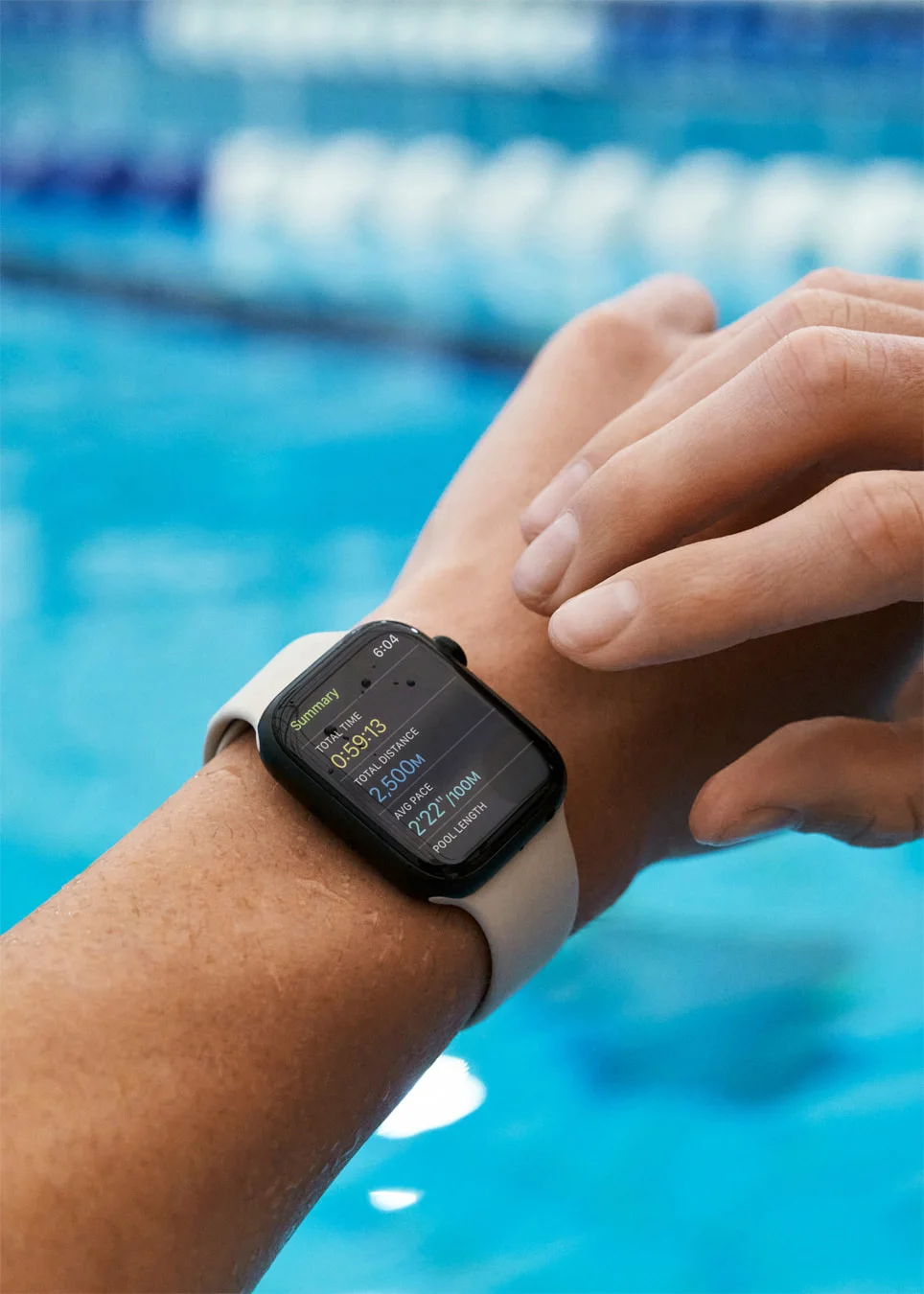
Cover photo: Apple Newsroom, 2022. Historical swimming workout summary; current controls may differ.
To turn on Apple Watch swimming mode, open Workout and choose Pool Swim or Open Water Swim. For a pool workout, enter the pool length and start the session. Water Lock activates automatically.
This guide covers recording a swim. Before entering the water, use Can you swim with Apple Watch? to check your model, band and device condition.
Where do you turn on swimming mode?
- Open the Workout app on your watch.
- Scroll with the Digital Crown to Pool Swim or Open Water Swim.
- Select the workout and its Start control. For Pool Swim, set the pool length when prompted, then start.
Follow the labels on your watch; the layout can vary by watchOS version. Apple’s swimming workout instructions show the current controls.
Should you choose Pool Swim or Open Water Swim?
Choose Pool Swim for a measured swimming pool and Open Water Swim for a swim in an outdoor body of water. A pool being outdoors does not make it an open-water swim.
For example, a hotel’s outdoor 25-metre pool is still a pool session. A swim along a beach does not have repeated pool lengths to enter. Make this choice before starting so your record reflects the session you planned.
What pool length should you enter?
Enter one end-to-end crossing, with the correct unit. A 25-metre pool means 25 metres, not the 50 metres of a round trip. If you are unsure, ask the pool staff instead of estimating from how long the pool looks.
Is swimming mode the same as Water Lock?
No. A swimming workout records the session. Water Lock prevents accidental touches; switching it on by itself does not start a workout or increase water resistance.
To enable Water Lock manually, press the side button to open Control Center, then select the water-drop button. To unlock on watchOS 9 or later, hold the Digital Crown until Unlocked appears; on watchOS 8 or earlier, rotate it. Speaker tones help eject water. See Apple’s Water Lock instructions or our Water Lock troubleshooting guide.
How do you pause and end the swim?
Press the Digital Crown and side button together to pause or resume. When finished, unlock with the Digital Crown and select End in the workout controls. Unlocking alone does not end recording. See the pause and resume guide if the shortcut does not work.
What should you check afterward?
Open the saved swim in Fitness on iPhone to see distance, time and pace.
Read swimming data explained for the metrics, or use the distance troubleshooting checklist if the distance is wrong.
If you want to compare apps for recording, reviewing or planning swims, see our Apple Watch swimming app comparison.